
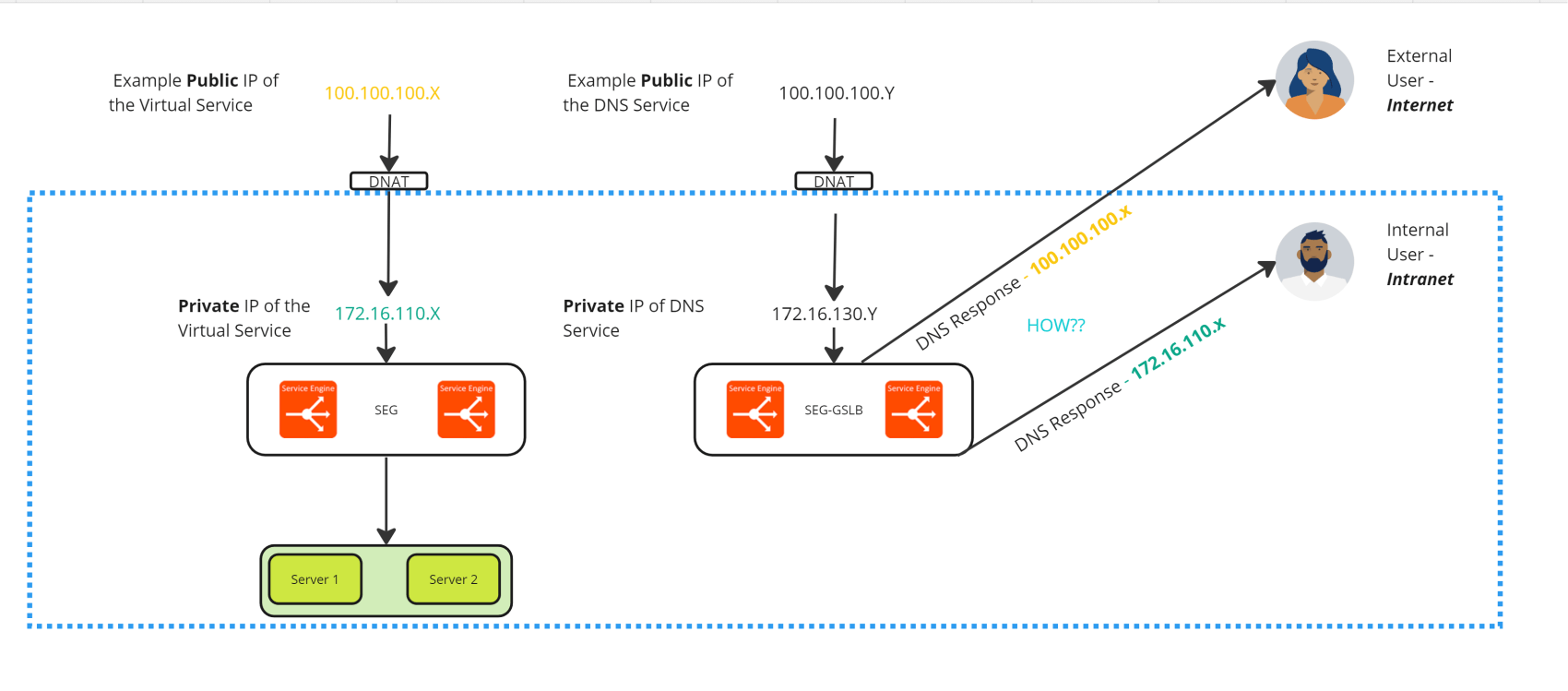
A conversation about how to configure GSLB service to provide the appropriate Public or Private IP as per the incoming DNS request.
CuriousTechie: Hello IT Guy, I am in a planning phase for a GSLB implementation and have some doubts around the DNS services, can you help me with it.
ITGuy: Sure! I recently had a conversation around GSLB which you can find here.
CuriousTechie: Yes! I have a fair understanding of GSLB, but I am looking for some specifics around how the GSLB DNS service determines which IP (Public or Private) it provides in the DNS response for Internal and External users. Can you help me to get some clarity and show the actual configuration?
ITGuy: Sure, let’s do a white board to build the understanding and then we can test it in a lab.
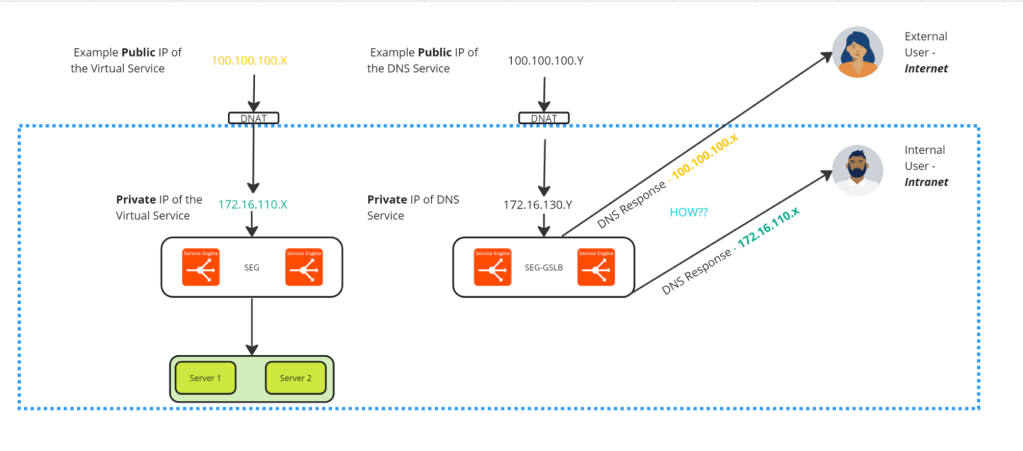
CuriousTechie: In the above whiteboard, I have created only one site to keep the board clean. Will consider the DNS service can respond back with the Virtual Service IP of any of the sites depending on the GLSB algorithm and availability.
- There are Internal users who are incoming from Intranet and must receive the Internal Private IP of the Application Virtual service in DNS response.
- There are External users who are incoming from Internet and must receive the External Public IP of the Application Virtual Service in DNS response and then incoming traffic will ingress via NAT.
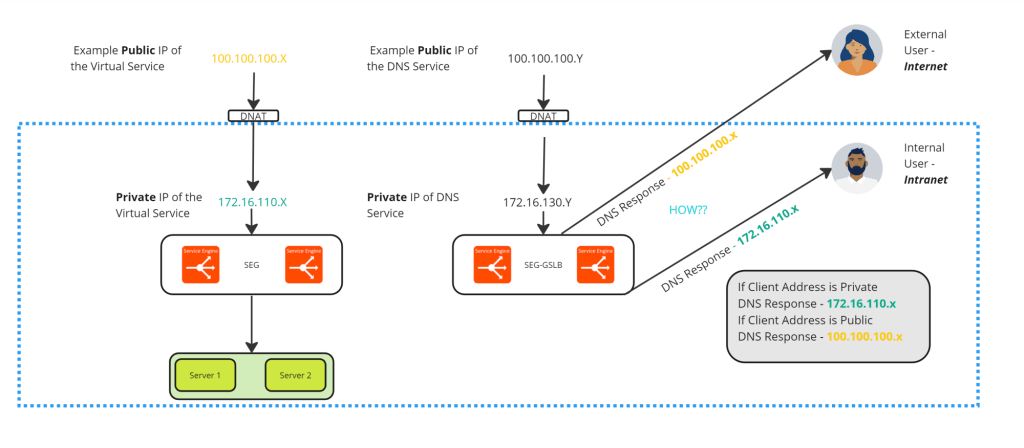
ITGuy: Ok this is a standard concept and known as NAT aware Public-Private GSLB configuration. We can achieve this by using a simple logic and respective configuration. Example:
If Client Address is Private
DNS Response – Private IP 172.16.110.x
If Client Address is Public
DNS Response – Public IP 100.100.100.x
NOTE: Below SNIPETS are from an Internal isolated LAB environment and random Public IP’s are used for testing. Please be cautious when implementing configuration with Public IP address
CuriousTechie: Can you please show me the configuration, how to implement this logic?
ITGuy: Let’s create a virtual service which will be configure behind a GSLB service. I will show the configurations of only one site to keep it short.
Virtual Service Name – “basic-app-a“
Private IP Address – 172.16.110.52

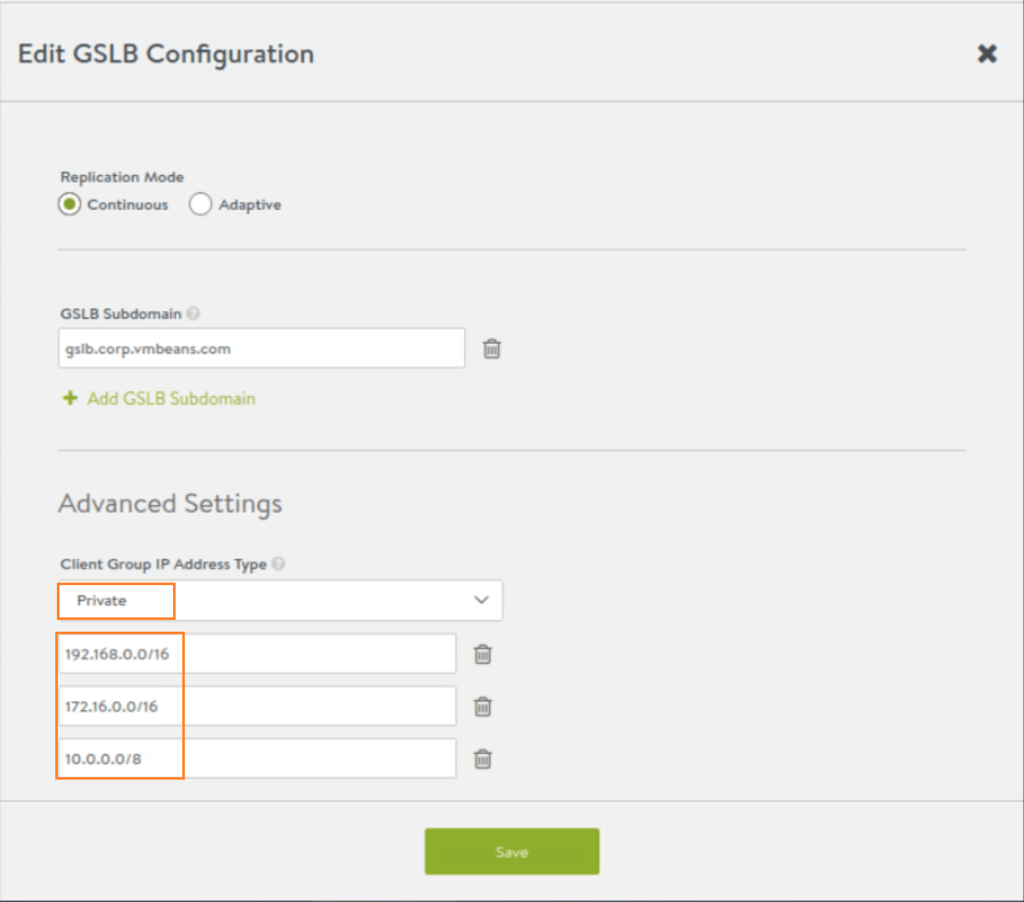
In the GSLB configuration, we will select the Client Group IP Address Type as Private and provide the range of Private IP’s. This means that any IP address outside of the list will be considered Public IP (You may tune it if needed for testing)
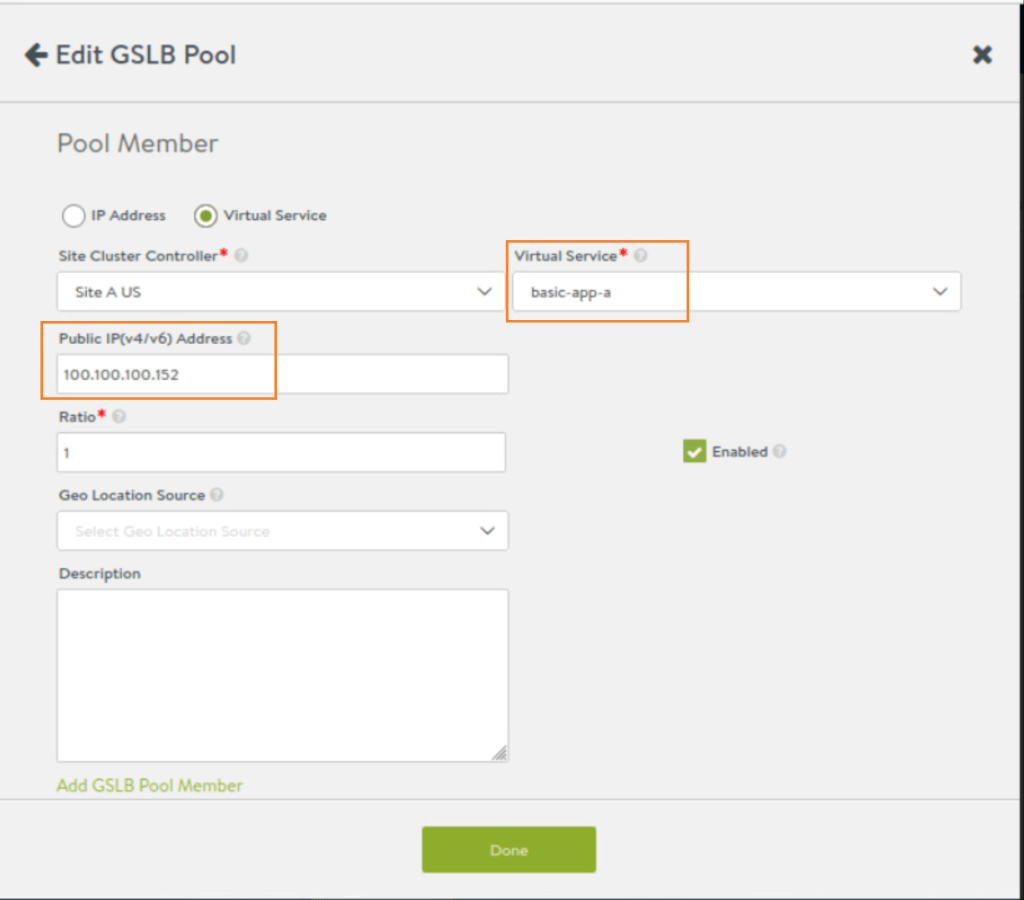
Configure the respective Public IP for virtual service in the GSLB service configuration, under the Pool member as below:
CuriousTechie: Cool! Is there a way to test it in my lab because I do not have any actual Public IP address.
ITGuy: There are few easy ways to test this.
Use DIG to add a Public IP subnet to get the Public Response
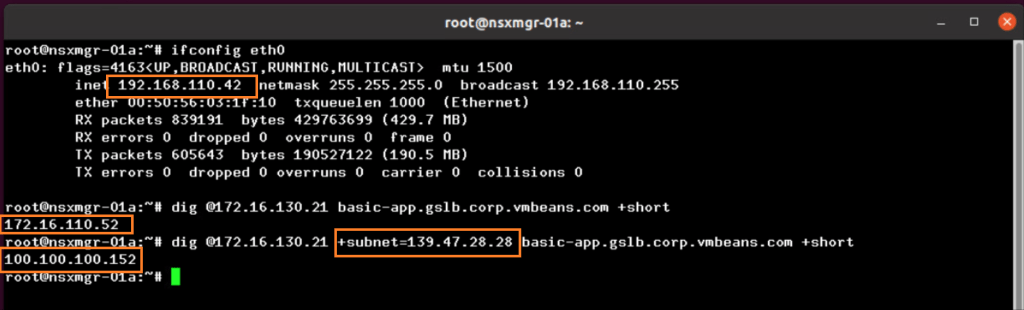
In the above commands I have used the DIG utility to check the DNS response by adding the +subnet as a Public IP to simulate the DNS query coming from a Public IP.
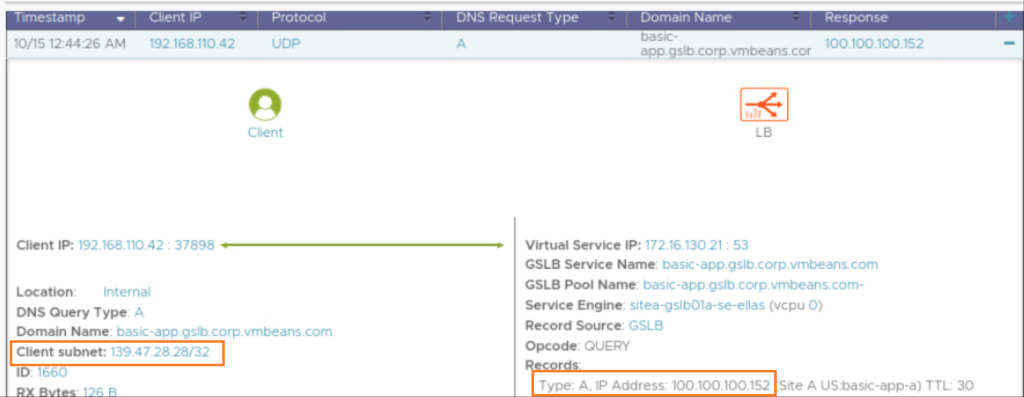
Below is the corresponding log when using the dig utility to introduce the client subnet.
CuriousTechie: Is there a reason for using dig @DNS server IP? As far as I understand it should work with the default DNS server.
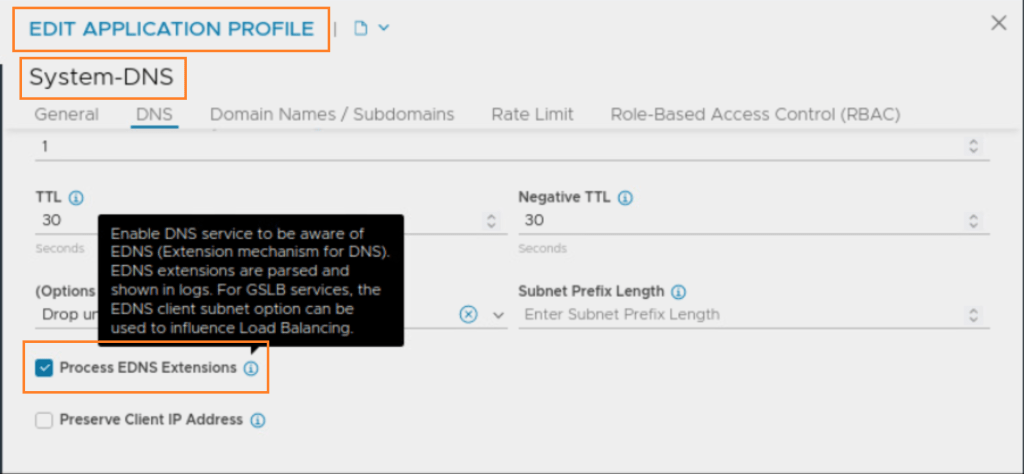
ITGuy: Yes, you are right! But for this test to work, the DNS server must support Extended DNS(EDNS) and my lab server doesn’t support EDNS. I directly queried DNS service hosted in NSX ALB which supports EDNS. You may validate the DNS application profile to confirm EDNS has been enabled.
CuriousTechie: Alright!! You also mentioned there is another way to test it.
ITGuy: Yes, that is extremely simple.
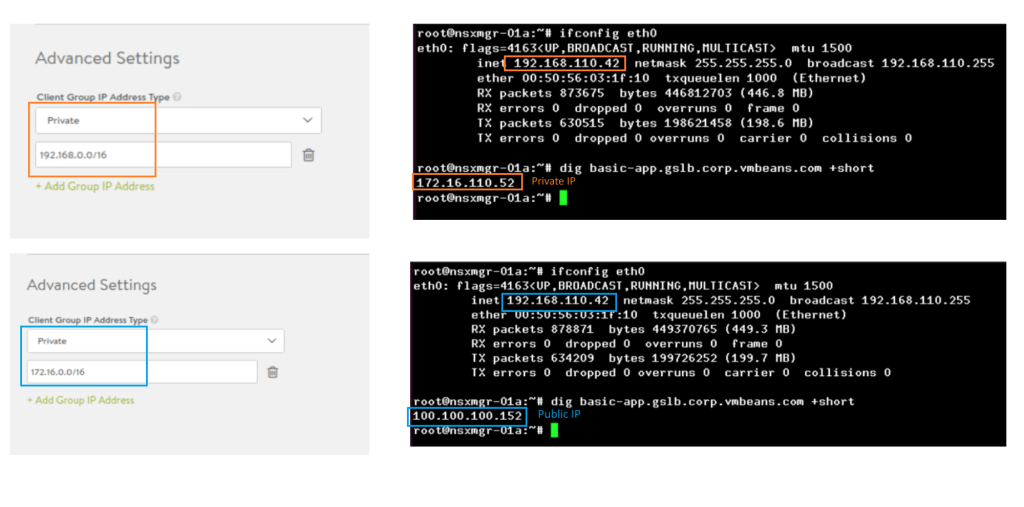
Modify the Private/Public Address Type
You may modify the Private/Public Address Type in the GSLB configuration to test for different results.
For example, if you provide Private Range as 172.16.0.0/16 then everything else is considered as Public. As you can see in the second snip where the Private IP 192.168.110.42 is considered as Public and thus Public IP(NAT) of the virtual service is sent in the DNS response.
You may check the official documentation here for further reading.
CuriousTechie: Cool! I think I got a fair understanding of this concept.
ITGuy: Great, see you next time!
 Curious-Techies