
A short conversation on how to check the applied Distributed Firewall Rules on a VM by using NSX Intelligence!!
CuriousTechie: Hello IT Guy, during our last conversation here we discussed about three ways to check applied DFW rules but you did mention there is another way to check the rules, can we talk about that?
ITGuy: Sure ! You can leverage Security Intelligence aka NSX intelligence to validate the rules applied on a VM.
CuriousTechie: I have been using Security Intelligence to get flow information and recommendations but never seen how to check applied rules using it, can you show me?
ITGuy: Sure !
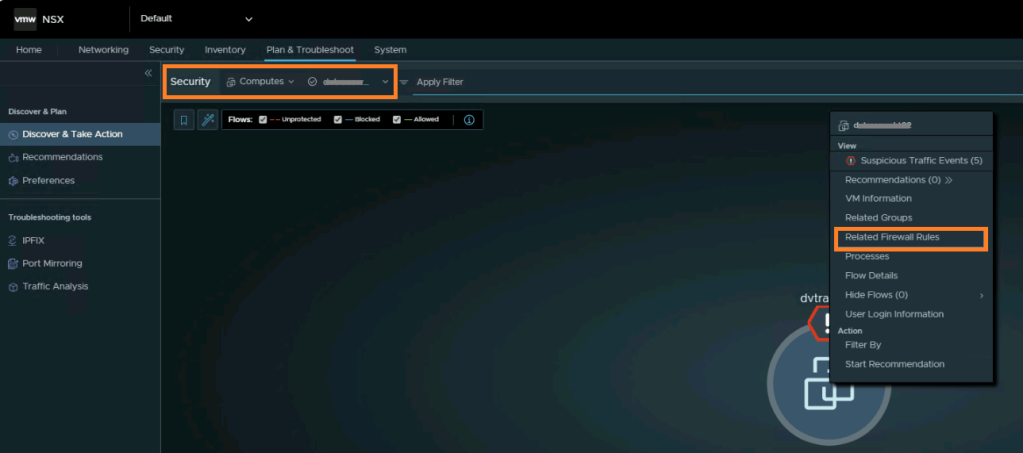
- Go to Plan & Troubleshoot
- Go to Discover & Take Action
- On the Top bar Select Computer -> Search and select the VM that you want to check the applied rules.
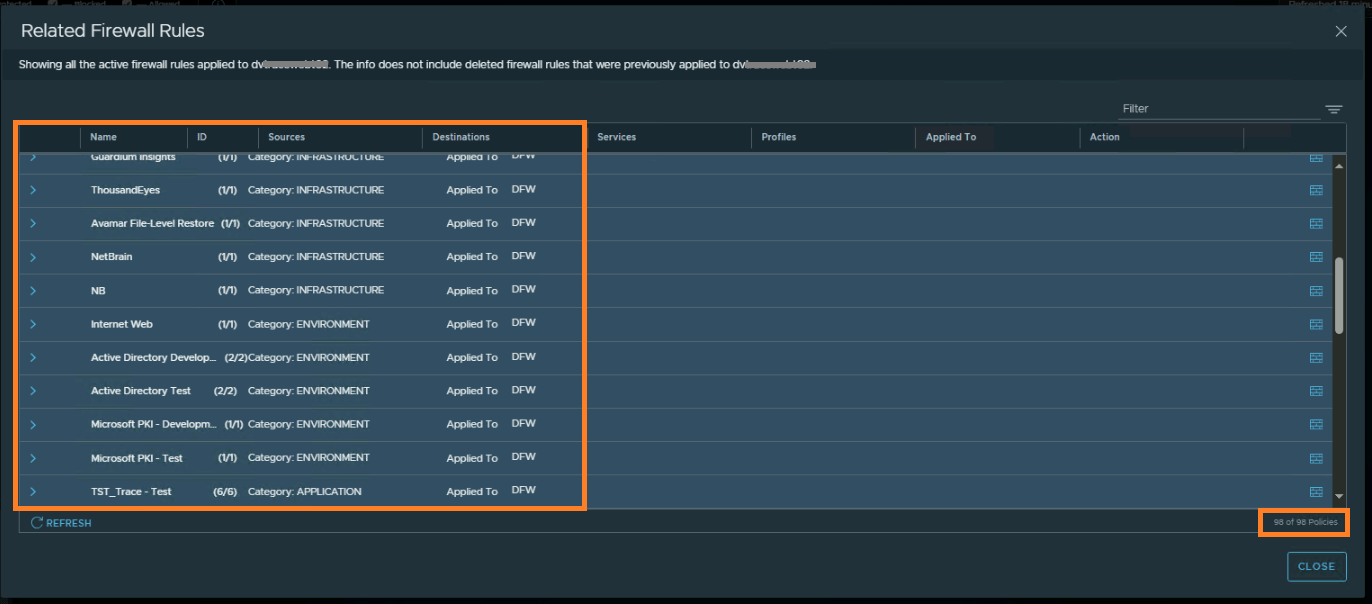
- Right click the VM -> Go to Related Firewall Rules
- You will see all the rules applied on that particular VM

CuriousTechie: Wow that is really helpful but I do not see this information in my Security Intelligence setup, see below. Any idea why?

ITGuy: Yes! I believe this feature is introduced in NAPP Platform version 4.1.2.1 thus if you are running an older version of NAPP then you will not see this feature. Please check your NAPP version.
CuriousTechie: That’s right my current NAPP version is 4.0.1.0

ITGuy: There you go! Probably its a good idea to plan for the NAPP upgrade in order to utilize all the latest features of this tool.
CuriousTechie: Sure, see you later!
 Curious-Techies