
A brief discussion about understanding directionality in vDefend Firewalls
CuriousTechie: Hello IT Guy! I have been playing around different options of implementing vDefend Distributed Firewalls. I see an option of Direction in the firewall rules (In-Out). Can you help me understand how does that work?
ITGuy: Sure! The direction in the rule is always with context to the VM(workload).
Rule Direction = In = Traffic will be allowed/disallowed to enter the VM = Ingress to the VM
Rule Direction = Out = Traffic will be allowed/disallowed to exit the VM = Egress from the VM
CuriousTechie: Then why do we have the default as In-Out?
ITGuy: That is purely for the ease of implementation and administration of Distributed Firewalls. Let’s understand this with the help of an example. Let’s say you have two virtual machines App & DB and you need to allow ICMP between them. How will you achieve that?
CuriousTechie: That’s simple, I will create a rule with Source:App – Destination:DB – Service:ICMP & AppliedTo:App & DB

ITGuy: Did you change the Direction?
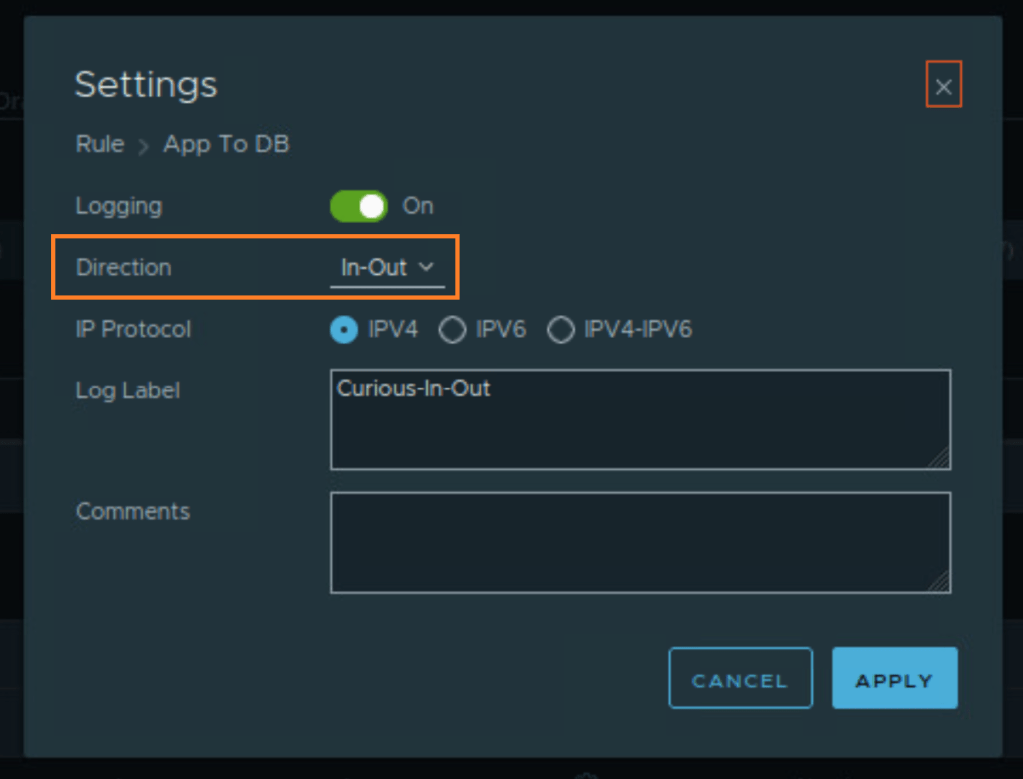
CuriousTechie: No! I kept it default In-Out and just enabled logging like this.
ITGuy: Perfect! So by default you were able to create a single rule for two different firewalls!
CuriousTechie: Sorry! What do you mean by two different firewalls?
ITGuy: Distributed Firewall means its actually applied on the vnic of a VM. If you have two VM’s with one vnic each, then you have two Firewalls in the context of your Applied To field. The same applies in other scenarios with multiple VM’s. Let’s open the Traceflow utility and run a trace between your App and DB VM to understand this better.
CuriousTechie: Sure!
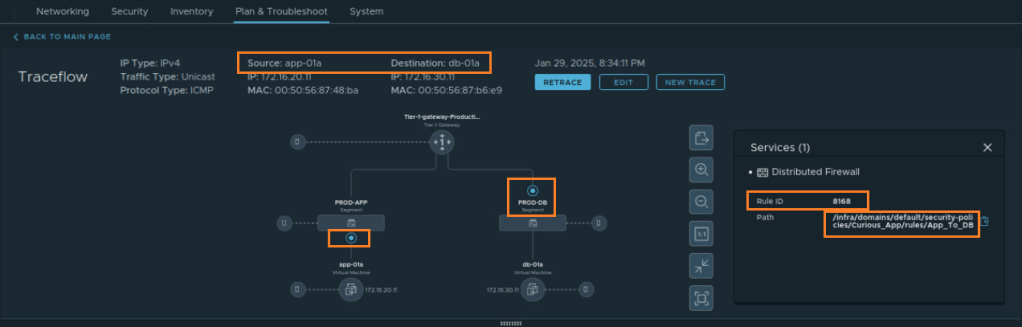
ITGuy: As you can see in the Traceflow, a single rule 8168 enabled you to manage two Firewalls. These Firewalls are in front of two VM’s, one allowed the traffic to come of App VM and other allowed the traffic to enter DB VM. You can look at the Firewall log. You will definitely see two logs. The first is OUT direction from App VM and another is IN direction to DB VM.

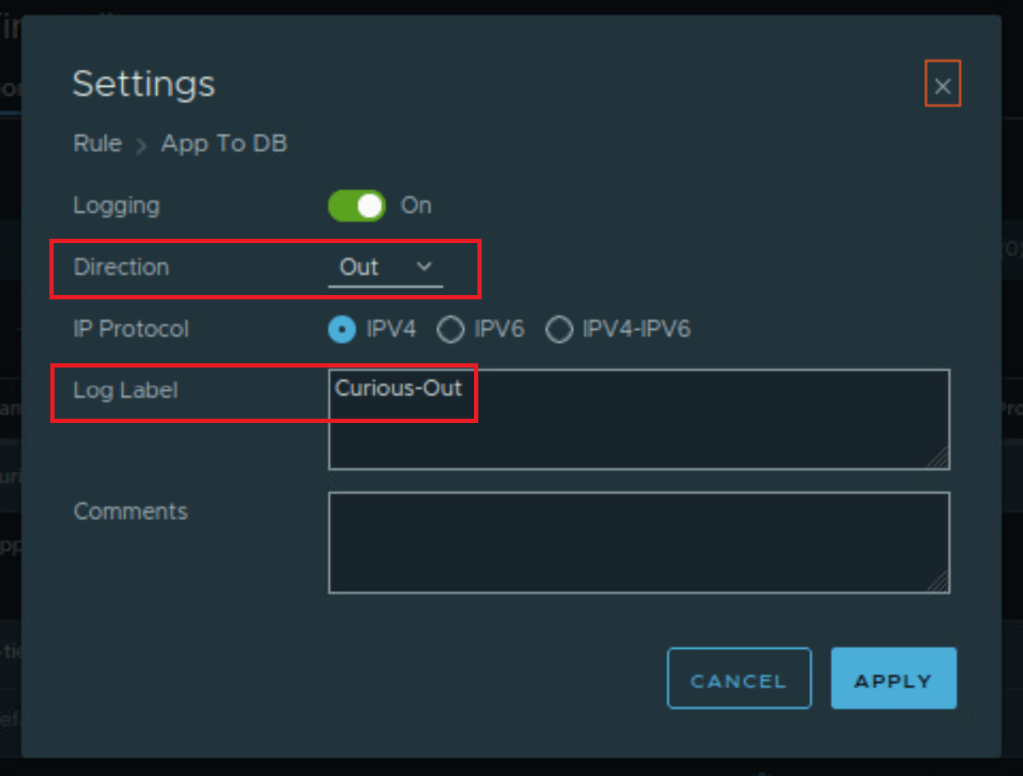
CuriousTechie: Interesting! Now I am curious to check what happens when I change the Direction to OUT.
ITGuy: If you change the same rule direction to OUT, you will see the packet coming OUT from App VM via rule 8168. However, it will never even hit the rule at the DB VM because the direction will not match. For a packet to be inspected by a firewall rule all of the below tuples must match.
- Source
- Destination
- Service – Layer 4
- Context Profile – Layer 7 (is used)
- Direction
Thus the packet will be dropped at the Default rule if it is set to DROP/REJECT!!!
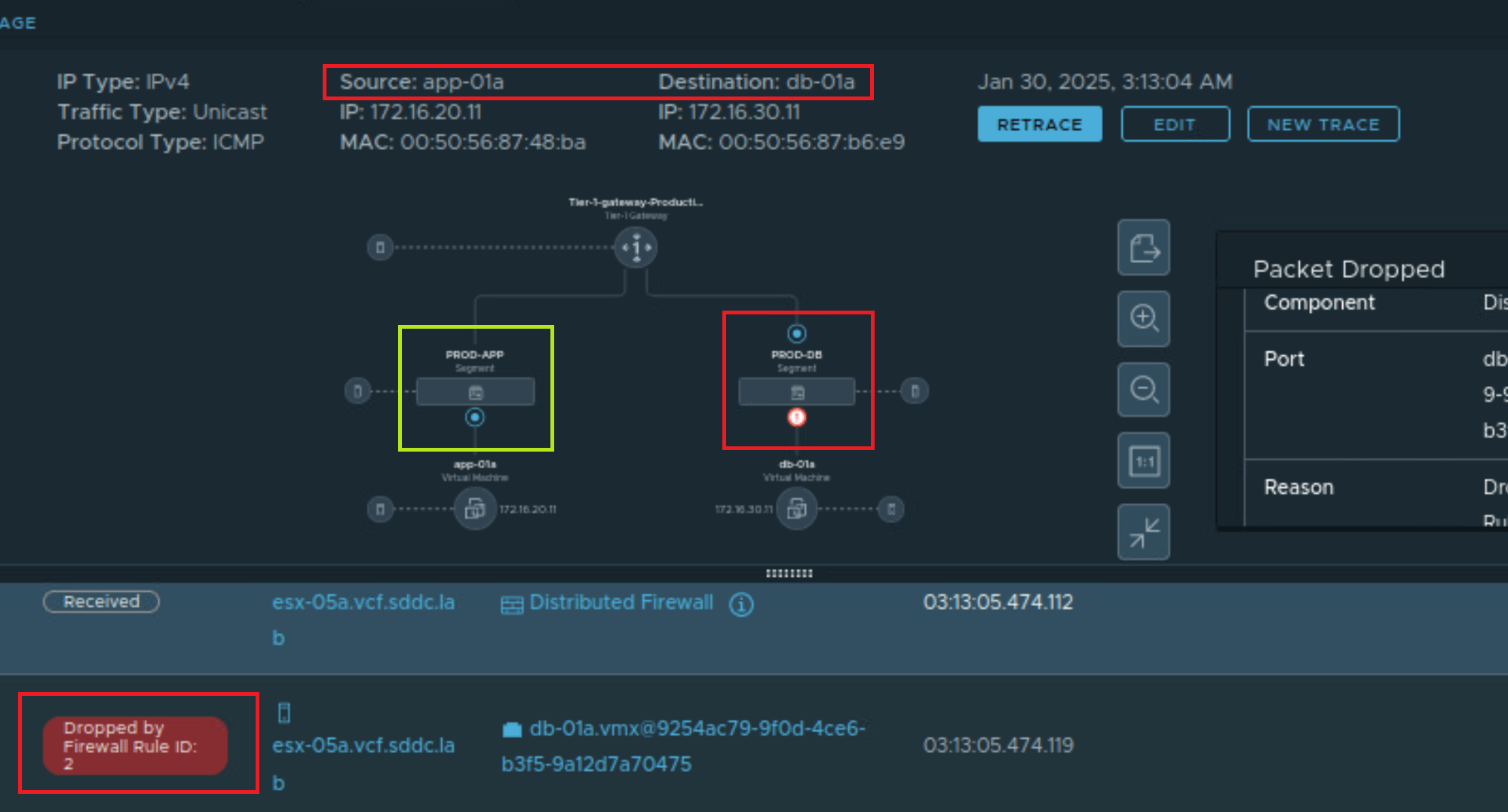
Let’s check the traceflow now!

CuriousTechie: Right! Packet got dropped at the nic of DB VM by the Default Rule ID 2 which is configured to REJECT. Let’s check the log!

ITGuy: Evidently only the OUT packet from App VM was inspected and allowed by rule 8168. At the DB VM side, the packet was in the IN direction. It did NOT match the direction of the rule, which is set to OUT. Thus the packet went down in the rule chain and got dropped by the Default rule id 2.
CuriousTechie: This is very insightful! But isn’t it best to always keep it at default In-Out to avoid any issues ?
ITGuy: Yes! In normal implementations it is BEST to keep it at default In-Out. Changing the direction is very specific to extreme performance applications. These scenarios require inspecting the traffic in a single direction. This approach saves few micro/nano seconds in latency. NOTE: DFW works in the Kernel at line rate. This means latency introduction is almost negligible. It doesn’t matter in 99% of applications.
Another major use case for adjusting Directions occurs with Distributed IDPS rules. They operate on the same principle.
CuriousTechie: Wow! Distributed IDPS works on the same principle!!! Can we talk about that in the next session?
ITGuy: Sure!!
 Curious-Techies