

A conversation about SMB protocol and how vDefend Firewall can help to Block legacy SMB protocols in a VCF or vSphere environment.
CuriousTechie: Hello IT Guy! I am trying to improve the security posture of my VMware SDDC Environment and block SMB version 1. Can I do it using vDefend firewall?
ITGuy: Absolutely! You can do it for the whole environment or very selectively for specific workloads. You can have the full flexibility and control over the traffic pattern using vDefend Firewall.
CuriousTechie: Alright but I do have a challenge. I have few legacy systems in the environment. They still use UDP port 137, 189, and TCP port 139 for NetBIOS services. Thus blocking these ports is not really an options for me.
ITGuy: Let’s start by understanding the basics of SMB, and then we can explore how to use vDefend to secure this risky protocol in the environment
SMB (Server Message Block)
SMB (Server Message Block) is a network file sharing protocol that allows applications and users to read and write to files and request services from server programs in a computer network. It is widely used for sharing access to files, printers, serial ports, and other resources on a network.
Major SMB version are:
- SMB 1.0 (CIFS – Common Internet File System)
- SMB 2.0
- SMB 3.0
SMB 1.0 (CIFS – Common Internet File System) doesn’t encrypt data, making it susceptible to man-in-the-middle (MITM) attacks. SMB v1 has many vulnerabilities (e.g., EternalBlue), which is why blocking it is highly recommended. SMB v1 traditionally runs over specific ports: 137, 138, 139, and 445. These are the default ports used for SMB over NetBIOS (ports 137-139) and SMB over TCP/IP (port 445).
In order to block SMB v1, I would recommend you to use Layer 7 Context Profiles in vDefend.
CuriousTechie: Can you show me how to do that in vDefend?
ITGuy: Let’s take a look at the Layer 7 Context profile options. Then let’s test a few rules to see how it works.
vDefend Layer 7 Context Profiles
Login to NSX and go to Inventory > Profiles. If you search for SMB, you won’t find any built-in profiles for SMB. So, let’s build a three different SMB context profiles just to check different options.
- Under Context Profiles, click on ADD CONTEXT PROFILE
- Let’s give a sample name “Curious SMB”
- Click on “Set” under the “Attribute” column.
- Click on “ADD ATTRIBUTE”, Select “APP ID” , search and select SMB.
- Click ADD and save the profile
- Note: There was no option to select any SMB version for this profile. This profile can be used when you want to use SMB service irrespective of the SMB version.
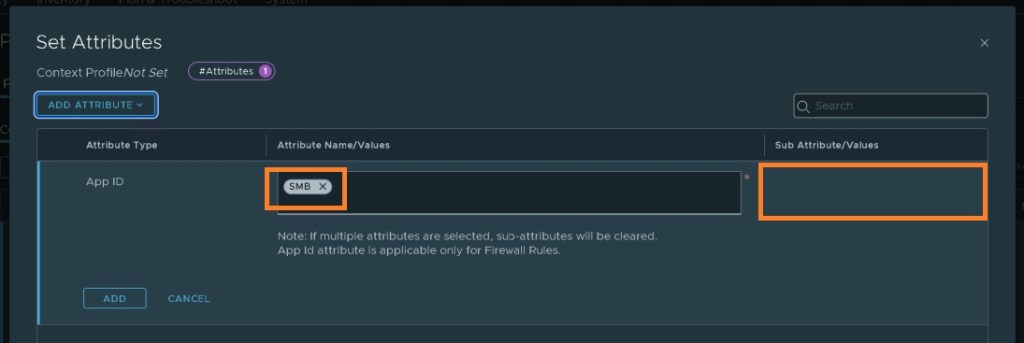
Let’s create a specific context profile for SMB v1
- Under Context Profiles, click on ADD CONTEXT PROFILE
- Let’s give a sample name “Curious SMB v1”
- Click on “Set” under the “Attribute” column.
- Click on “ADD ATTRIBUTE”, select “APP ID” , search and select CIFS.
- Select “ADD SUB ATTRIBUTE”, select CIFS_SMB_V1.
- Click ADD and save the profile
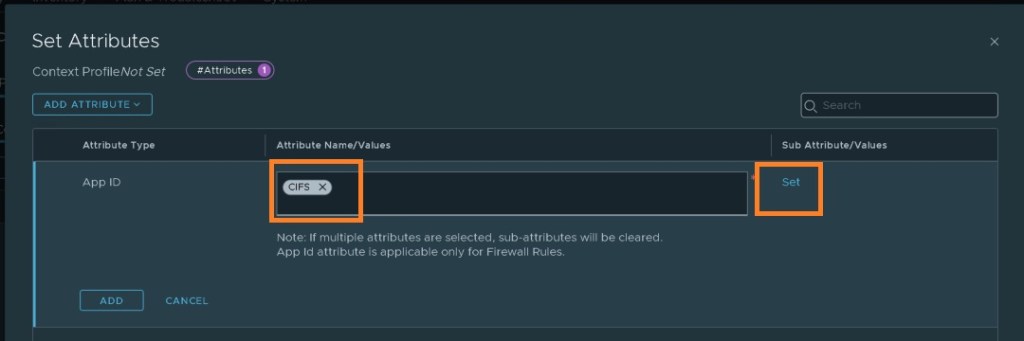
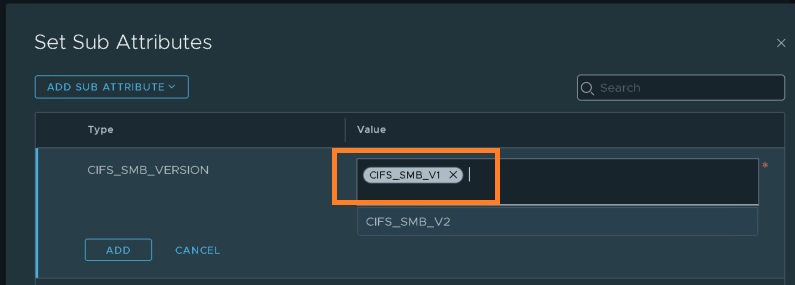
Similarly Let’s create a specific context profile for SMB v2 and name it “Curious SMB v2“
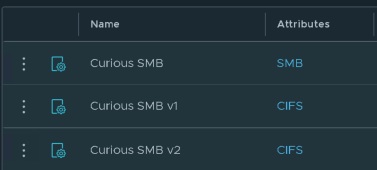
Let’s test these out using a sample application. This sample application have 4 virtual machines S1, S2, S3, S4
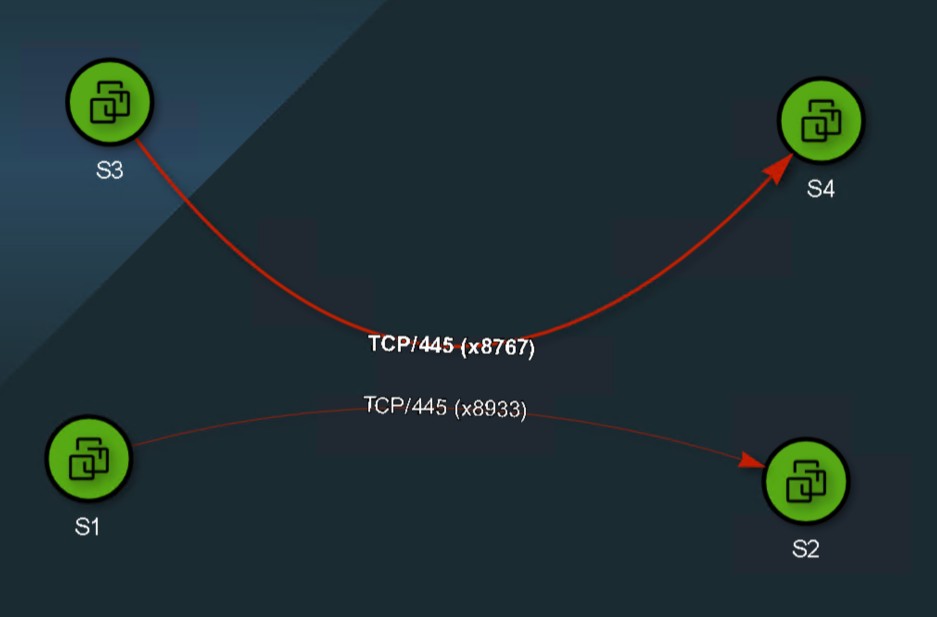
S1 (10.0.0.27) to S2 (10.0.0.28) TCP port 445 runs SMB v2
S3 (10.0.0.29) to S3 (10.0.0.30) TCP port 445 runs SMB v1
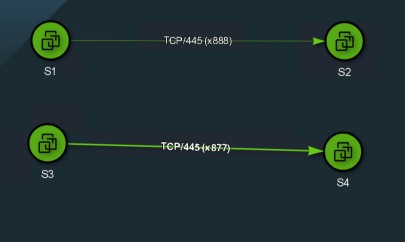
Let’s apply rules to allow the SMB v2 traffic and deny SMB v1 traffic for all of these 4 vm which are in a single group called “S“
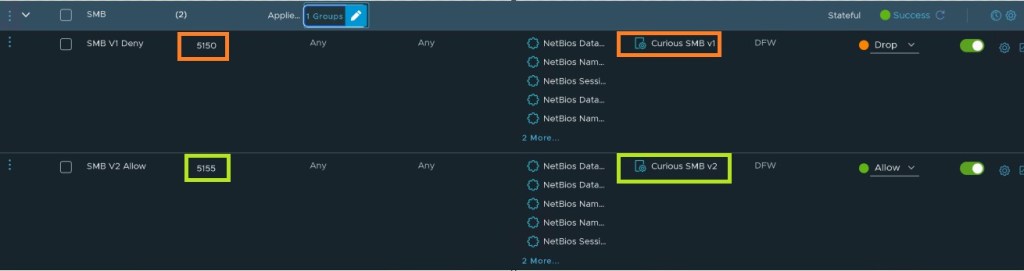
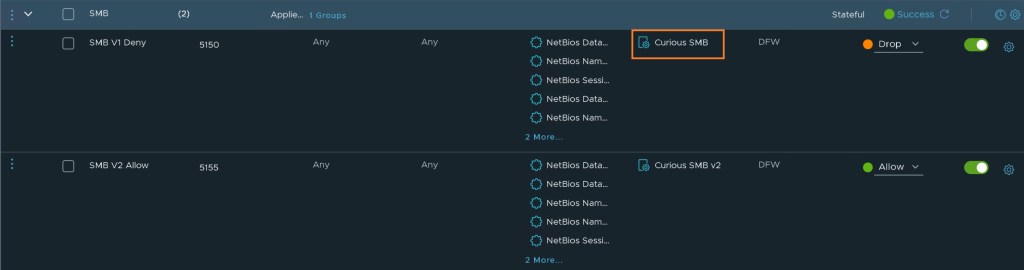
- Rule 5150 Drops SMB v1 traffic across these 4 VM’s.
- Rule 5155 allows SMB v2 traffic across these 4 VM’s
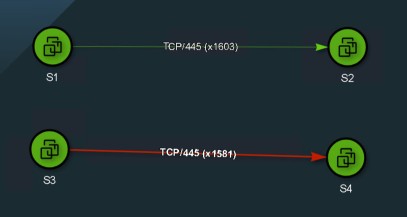
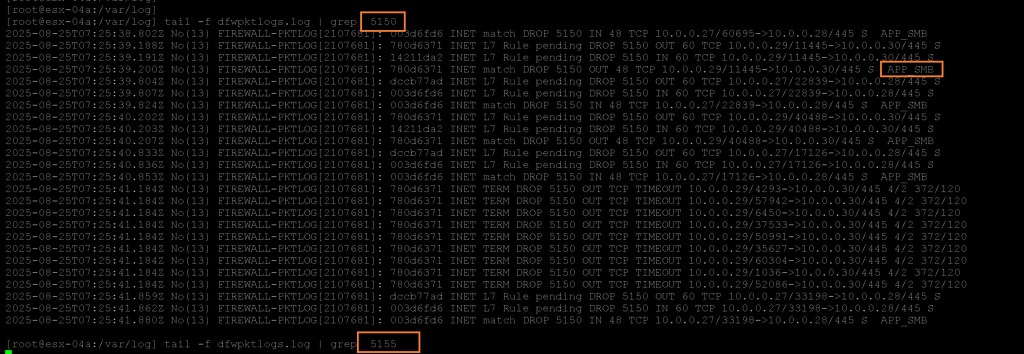
You should definitely check the logs for validations
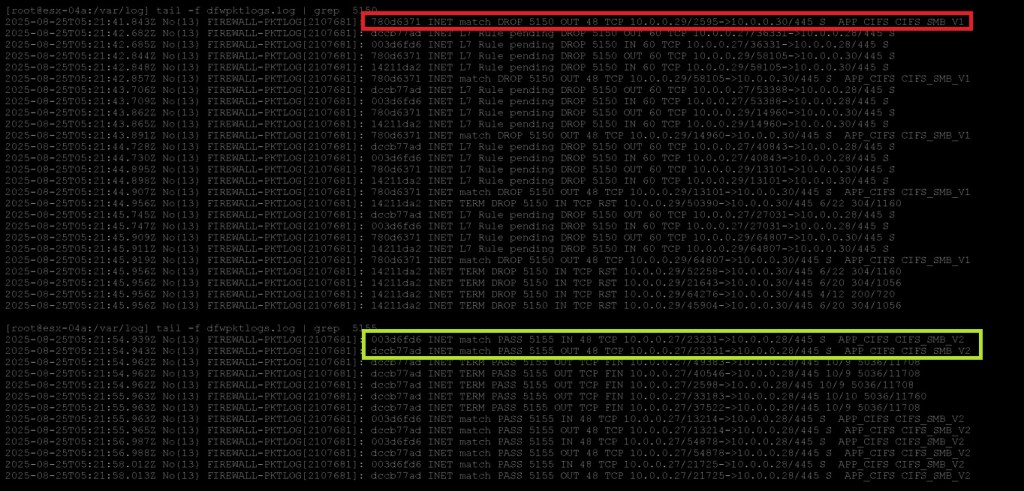
You can see in the logs that APP_CIFS CIFS_SMB_V1 is getting dropped by rule id 5150. However, APP_CIFS CIFS_SMB_V2 is allowed to pass by rule id 5155.
CuriousTechie: Cool! Can you explain me the reason of using Layer 4 service ports in the rules?
ITGuy: Good point! SMB typically runs on a few known ports, which is why I used a Layer 4 + Layer 7 rule. This approach limits the traffic sent to the Deep Packet Inspection engine, meaning it will only inspect traffic that matches Layer 4. Alternatively, you can use a Layer 7-only rule by setting the service to ‘Any’.
CuriousTechie: What is the purpose of the context profile you created named “Curious SMB”.
ITGuy: Ah, yes! That was just to demonstrate that you can use a Context Profile for SMB, regardless of the version. For instance, if I change the Context Profile to ‘Curious SMB’ on rule 5150, all SMB traffic will be dropped, and you’ll see no hits on rule 5155.
As expected all the SMB traffic is now dropped
Let’s validate the logs. As you see below, all SMB traffic is now getting dropped by rule 5150. Rule 5155 is not getting any hits.
CuriousTechie: Understood! So I can use the same methodology to restrict SMB v1 in the whole environment by using the Applied To accordingly.
ITGuy: Yes! Securing legacy protocols like SMB v1 is crucial for enhancing the overall security of your VMware SDDC environment. By leveraging vDefend’s Layer 7 Context Profiles, you can gain granular control over SMB traffic and mitigate the risks associated with outdated versions. Whether you’re selectively restricting SMB v1 or applying it across the entire environment, this methodology empowers you to ensure that only the necessary and secure SMB versions are in use, minimizing your attack surface.
By incorporating these best practices in your vSphere or VCF environments, you can proactively defend against common vulnerabilities, improve operational efficiency, and maintain a secure and resilient infrastructure.
CuriousTechie: Thank you so much for these details!
 Curious-Techies